Your Logo in PocketChef: It Appears on Every PDF and on Your Digital Menu
You can now upload your bakery’s logo in your PocketChef account settings. From then on, the mark appears on every PDF the app generates and on your Digital Menu.
Quotes, shopping lists and standardized recipes no longer look like generic printouts. When a customer opens the PDF or your menu link, they see your business at the top of the page.
This post shows where to upload the logo, which documents it appears on, and a real example from the Doces da Alice demo account, with a quote, a shopping list and the digital menu.
Quick Summary for Food Entrepreneurs (TL;DR)
- Upload your logo once, in My Profile. The screen itself says the image is used in PDFs and on your Digital Menu.
- The logo then signs every PDF PocketChef generates — including a quote, the shopping list and the standardized recipe PDF.
- The same mark appears at the top of your Digital Menu.
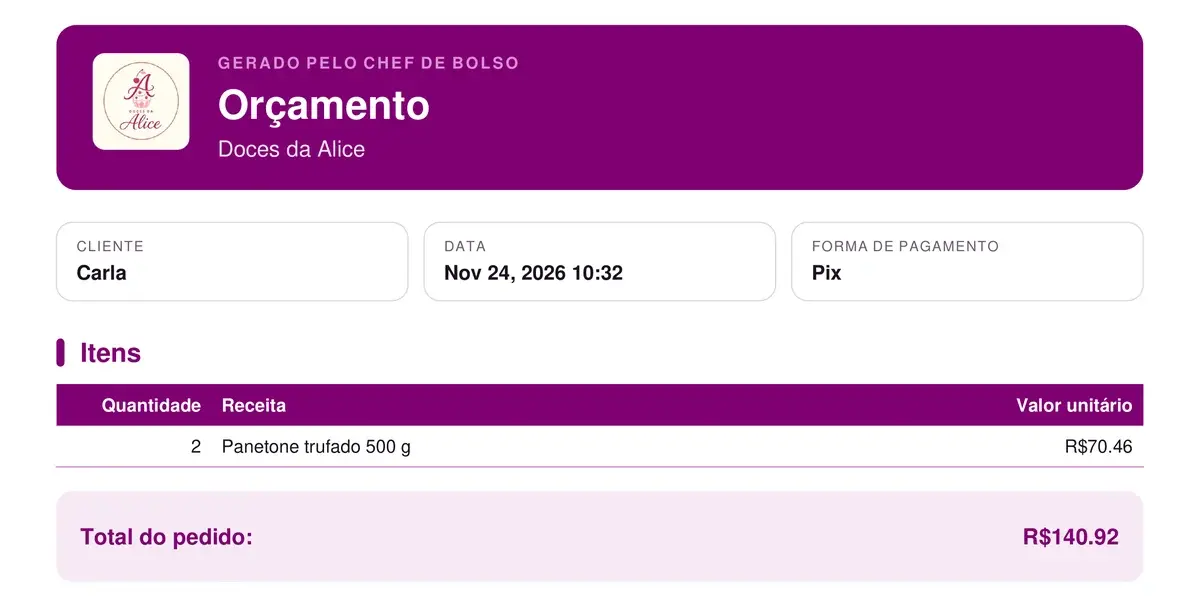
- On the Doces da Alice demo account, a quote for 2 truffled panettone cakes (500 g each) totaled R$ 140.92, with the logo in the header. Amounts are illustrative.
Why put your logo on PDFs and on the menu?
A logo is not only a graphic for social posts. It is one of the first things a customer sees when they receive a quote or open your menu link. If every document looks different, the business feels improvised. If the same mark shows up on the PDF and on the menu, the message is that there is a real shop behind the WhatsApp chat.
For a home bakery, those files are often the most “official” material you send. Putting your logo on them is a simple way to keep the same face on every customer touchpoint, without redesigning each file by hand.
Where do I upload my logo in PocketChef?
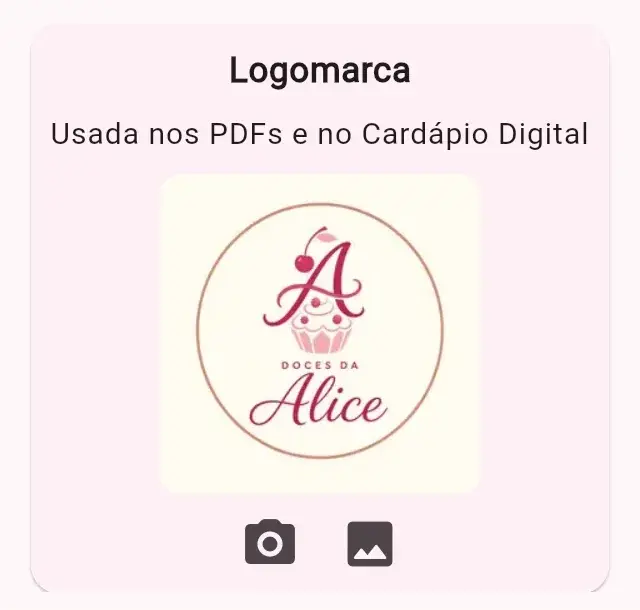
Open My Profile in the account menu. There is a logo field, with a note that the image is used in PDFs and on your Digital Menu. Upload the file once and save your profile.
You do not need to upload it again for each quote or shopping list. The mark stays on the account and signs what the app generates from then on.
Which documents show the logo?
The logo appears on every PDF PocketChef generates and on your Digital Menu. The documents you are most likely to use day to day include:
- the quote PDF you share with a customer;
- the shopping list, when you plan a production run;
- the standardized recipe PDF.
On the Digital Menu, the mark sits at the top of the page, next to your business name, on the same link you already share with customers.
Worked example: Alice’s quote for Carla
On the Doces da Alice demo account, an order for a customer named Carla produced this quote:
- 2 × truffled panettone, 500 g, at R$ 70.46 each
- Order total: R$ 140.92
- Payment method: Pix
In the PDF header, next to the quote title, the Doces da Alice logo appears. The file is no longer a plain sheet; it carries the bakery’s mark. The amounts are from the demo account, which uses Brazilian reais.
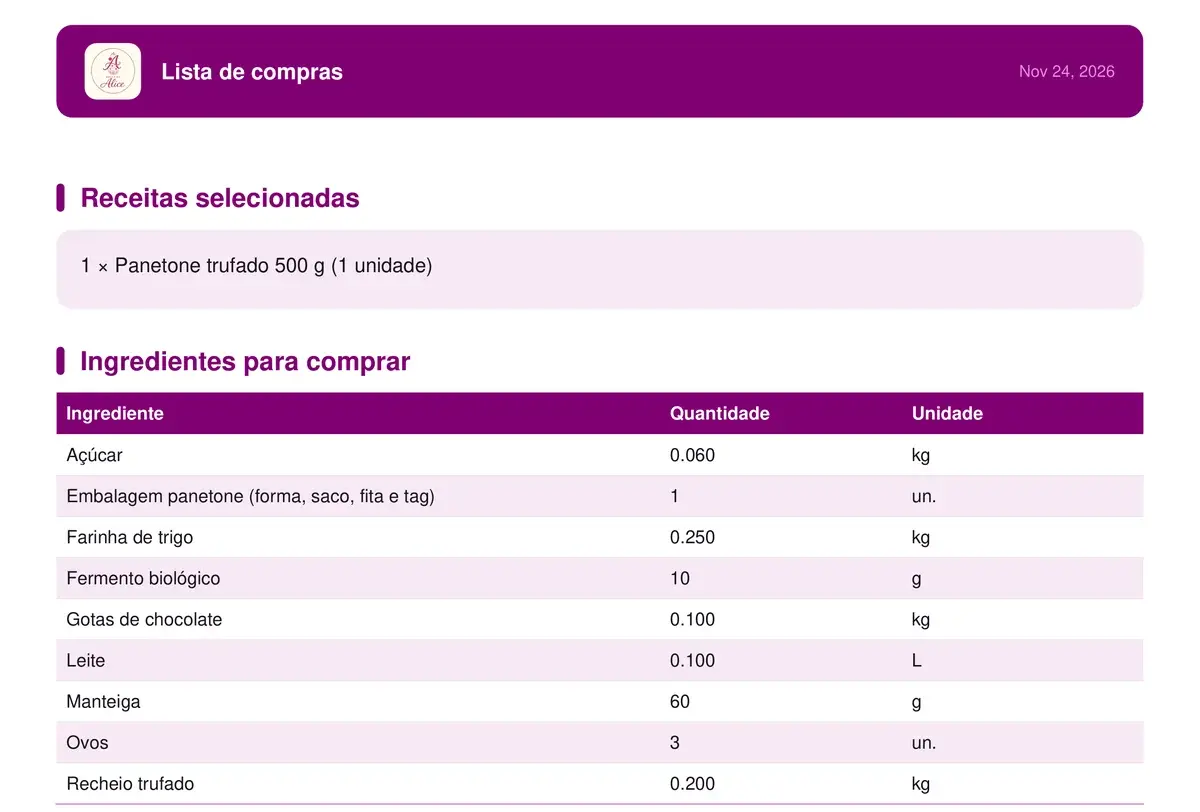
The same logo signs the shopping list for one 500 g truffled panettone, with the ingredients already totaled (flour, butter, truffle filling, packaging and the rest).
On the Digital Menu, the mark appears in the top corner, next to “Doces da Alice · Natal,” in the same view a customer sees when they open the link.

Frequently Asked Questions about the logo (FAQ)
1. Where do I upload my logo in PocketChef?
In My Profile, in your account settings. There is a logo field with a note that the image will be used in PDFs and on your Digital Menu.
2. Which documents show the logo?
Every PDF the app generates — including quotes, shopping lists and standardized recipe sheets — and the Digital Menu.
3. Do I have to upload the logo again for each PDF?
No. You upload it once in your profile. The mark stays on the account and then appears on the documents and the menu.
4. Does the logo also appear on the Digital Menu?
Yes. It sits at the top of the page, next to your business name, on the link you share with customers.
Let your mark sign what the customer receives
A clear quote already helps you close the order. A quote that carries your logo, in the same visual as your menu, makes it obvious that a real business stands behind the message.
Upload your logo in My Profile and generate the next PDF with your bakery’s face on it. Try PocketChef for free.